Ever found yourself staring blankly at your iPhone, wondering where that elusive password for your favorite app went? It’s like trying to find a needle in a haystack, except the haystack is your memory and the needle is… well, your sanity. Don’t worry; you’re not alone in this digital jungle.
Understanding Password Management on iPhone
Efficient password management is crucial for maintaining security on an iPhone. Users often rely on various features to streamline this process.
Importance of Password Security
Password security safeguards personal information and prevents unauthorized access. Keeping passwords unique and complex reduces the chance of breaches. Data shows that 81% of data breaches result from weak or reused passwords. Users benefit from regularly updating passwords to enhance security. Strong passwords combine letters, numbers, and special characters, making them harder to crack. Adopting two-factor authentication adds an extra layer of safety, building confidence in digital environments. Everyone should recognize how vital password security is to protecting sensitive data and maintaining privacy.
Built-in Password Features
iPhones offer built-in password features that simplify management. The Passwords section in Settings provides easy access to saved credentials. Users can enable AutoFill for seamless login experiences across apps and websites. iCloud Keychain securely stores and autofills passwords, syncing them across devices. Users receive alerts for reused or compromised passwords, encouraging prompt action. Creating strong passwords is simpler with the password generator tool included on iPhones. These features collectively enhance convenience while safeguarding sensitive information, proving beneficial for all users.
Accessing Saved Passwords on iPhone

Finding saved passwords on an iPhone is straightforward with the right steps. Users can retrieve their passwords through the Settings app or Safari.
Using Settings to Find Passwords
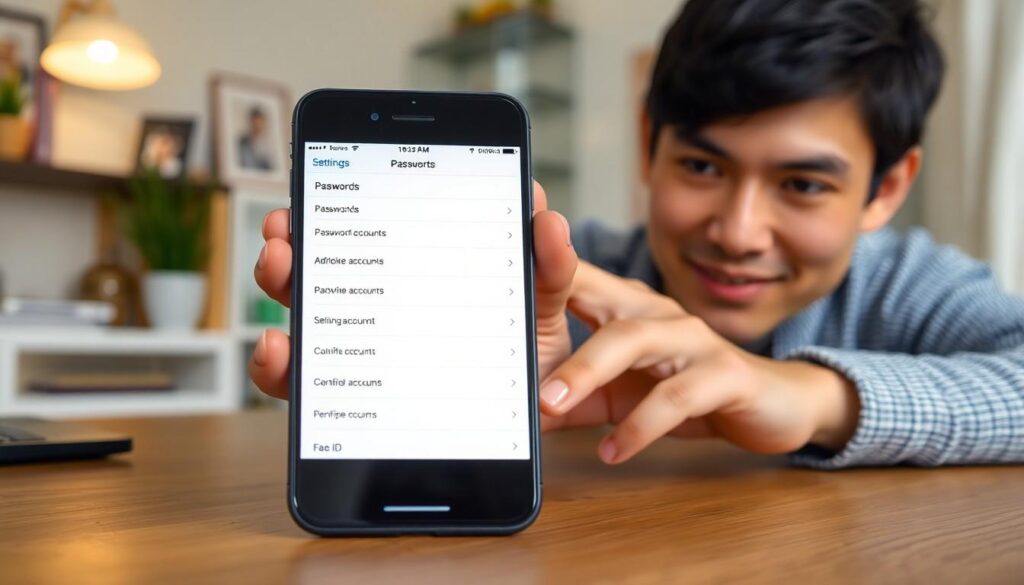
To access saved passwords, open the Settings app and scroll to Passwords. Users need to authenticate with Face ID or Touch ID. A list of stored accounts appears, displaying usernames and corresponding passwords. Selecting an account reveals more details, including the option to copy the password for easy use. This method ensures quick access when managing various logged-in accounts.
Utilizing Safari for Password Retrieval
When using Safari, retrieving passwords is equally simple. Tapping the autofill field while logging in prompts Safari to suggest saved credentials. Users can select their desired account, facilitating a seamless login experience. Additional options to view the password exist in the settings where saved passwords are listed. This functionality exemplifies the convenience of using Safari for managing login information on an iPhone.
Third-Party Apps for Password Recovery
Third-party apps can streamline password recovery on an iPhone, providing additional options for retrieving lost credentials.
Recommended Password Managers
- LastPass: This manager offers robust features, including password generation, storage, and autofill capabilities across devices.
- 1Password: Known for its security features, it allows users to save sensitive information securely, maximizing usability.
- Dashlane: Offers a comprehensive solution with a password health report that identifies weak or reused passwords.
- Bitwarden: An open-source option that provides excellent security and collaboration features for shared passwords.
Features to Look for in Password Recovery Apps
Security matters in any password recovery app. Choose ones that provide end-to-end encryption to protect sensitive information. Usability is crucial; users should select apps with intuitive interfaces and simple navigation. Compatibility also plays a role; ensure the app works seamlessly across multiple devices. Additionally, consider options that offer password generation and storage, which simplifies managing credentials. Regular updates from the developers guarantee ongoing security improvements and new features.
Best Practices for Password Management
Effective password management enhances security and simplifies account access. Consider these best practices to safeguard sensitive information.
Regularly Updating Passwords
Regularly updating passwords helps reduce the risk of unauthorized access. Aim to change passwords every three to six months. Choose unique passwords that combine letters, numbers, and special characters. Avoid phrases related to personal information like birthdays or names. Enabling notifications from your password manager can prompt timely updates. Regular reviews of account security can also highlight any potential vulnerabilities.
Keeping Track of Your Passwords Securely
Keeping track of passwords securely is crucial for maintaining integrity. Utilize password managers instead of relying on memory. Password managers store and encrypt passwords, reducing the chances of data breaches. Choose a reputable password manager that offers end-to-end encryption and compatibility across devices. Regularly backup these credentials, ensuring access even if a device is lost. Stay informed about the latest security features offered by these tools.
Conclusion
Finding old passwords on an iPhone doesn’t have to be a daunting task. With the built-in features and reliable third-party apps available, users can efficiently manage and retrieve their credentials. By adopting best practices for password security and utilizing password managers, individuals can protect their personal information while enjoying a seamless login experience. Regularly updating passwords and staying informed about security advancements further enhances protection against potential threats. Embracing these strategies not only simplifies access to accounts but also fortifies security in today’s digital landscape.